📘 Who Should Read This?
If you’re comfortable with basic storage concepts, maybe used NAS before, but the word
“SAN” still feels scary or “only for big enterprise people” – this guide is for you.
You’ll find this useful if you are:
- 💼 IT Support / System Administrator starting to work with servers
- 🏢 Managing virtualization environments (VMware / Hyper-V / Proxmox)
- 📦 Working with databases or critical apps that need high performance storage
- 🎓 A learner who already knows NAS and wants to level up to SAN
Don’t worry about vendor-specific fancy terms. In this article, we’ll talk about SAN
in simple, real-world language so you can connect it with your daily IT life.
1️⃣ Quick Recap: NAS vs SAN in One Line
Before going deep into SAN, remember this simple comparison:
- NAS (Network Attached Storage): Shares files over the network → users see folders & files (SMB/NFS).
- SAN (Storage Area Network): Provides blocks to servers → servers see “raw disks / LUNs” and build their own file system.
So, NAS feels like a shared drive. SAN feels like an external high-performance disk directly attached to your servers.
2️⃣ What Exactly Is SAN?
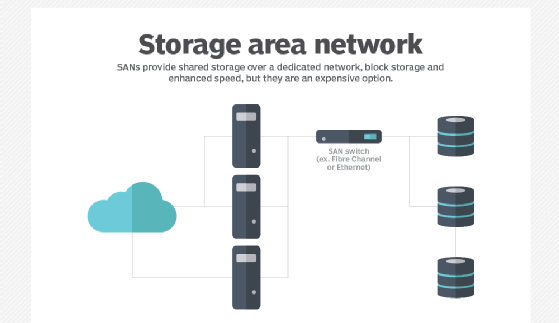
A Storage Area Network (SAN) is a dedicated high-speed network that connects
servers to shared storage at the block level.
Instead of each server having its own local disks only, they connect to a SAN and use
shared storage arrays over a special storage network.
Think of it like this:
You have multiple powerful application servers (database, VM hosts, etc.). Instead of
putting big disks in every server, you build one powerful storage system (SAN)
and connect all servers to it over a high-speed network.
3️⃣ Where Do We Use SAN in Real Life?
SANs are common in environments where:
- ⚡ High performance is required (databases, transaction systems)
- 📊 There are many virtual machines on VMware / Hyper-V
- 🔁 You need features like clustering, failover and live migration
- 🧩 You want central storage instead of disks scattered across many servers
Typical examples:
- Core banking environments
- Enterprise data centers
- Large ERP / HR / CRM systems
- Private cloud infrastructure
4️⃣ Basic Building Blocks of a SAN
To understand SAN, remember these core components:
🔹 1. Storage Array (SAN Storage)
This is the “big box of disks” – but smarter. It usually contains:
- Many HDD / SSD / NVMe drives
- Controllers (brains that handle I/O, RAID, caching)
- Network/FC ports that connect to switches or directly to servers
🔹 2. Servers (Initiators)
These are your application servers or hypervisors (Windows, Linux, ESXi, etc.).
They initiate the connection to storage. In iSCSI language, they are called
initiators.
🔹 3. LUNs (Logical Unit Number)
Inside the storage array, you create LUNs – logical volumes carved out from the physical disks.
Each LUN is presented to a server as if it is a real physical disk.
On the server side you then:
- Initialize disk
- Create partition
- Format (NTFS/EXT4/ReFS, etc.)
- Mount it and use it like a normal drive
🔹 4. Fabric / Network
The SAN fabric is the dedicated network that connects servers and storage.
It can be built using:
- Fibre Channel switches (for FC SAN)
- Ethernet switches (for iSCSI or NVMe-oF)
🔹 5. HBA / NIC
Servers connect to the SAN using:
- HBA (Host Bus Adapter): For Fibre Channel SAN
- NIC (Network Interface Card): For iSCSI / IP-based SAN
5️⃣ Common SAN Protocols (High Level)
You don’t need to be an expert in all protocols to start, but you should recognize them:
- Fibre Channel (FC): Dedicated fibre network, very fast, low latency.
- iSCSI: Uses normal Ethernet/IP, more flexible and cheaper. Uses TCP/IP ports (usually 3260).
- FCoE: Fibre Channel over Ethernet – combines FC with Ethernet.
- NVMe-oF: Newer tech, very high performance over fabric.
For many mid-sized environments, iSCSI SAN is a very popular choice
because it works over existing Ethernet infrastructure (with some tuning).
6️⃣ Simple Example: How a SAN Volume Reaches a Server
Let’s walk through a very simple flow.
- You have a SAN storage with 20 SSDs.
- You create a RAID group / pool on the storage array.
- From that pool, you create a LUN of 2 TB.
- You assign this LUN to a specific server (by WWN / IQN / IP).
- On the server, you rescan disks → a new disk appears.
- You initialize the disk, create a partition and format it.
- Now the server uses this 2 TB disk for database / VMs / files, etc.
Key idea:
The server thinks “this is my local disk”, but actually the disk is sitting inside
the SAN array in the data center, shared over a dedicated storage network.
7️⃣ SAN vs NAS – When Should You Prefer SAN?
Use NAS when:
- Users just need file shares (documents, home folders, team shares).
- Access is over SMB/NFS from laptops, desktops, etc.
- Performance is important, but not ultra-critical.
Use SAN when:
- You run databases (SQL, Oracle, etc.) with heavy I/O.
- You have virtualization clusters (VMware, Hyper-V) that need shared block storage.
- You require features like live migration, cluster shared volumes, etc.
- Your apps need predictable, low latency storage.
8️⃣ Typical Beginner-Friendly SAN Topology
Imagine a small lab or mid-size company:
- 2 × ESXi or Windows servers (for running VMs)
- 1 × SAN storage box (iSCSI)
- 2 × dedicated switches for iSCSI (for redundancy)
Each server connects with two links to the iSCSI switches, and the SAN storage
also connects with two links. Multipathing software on the server manages
multiple paths to the same LUN for performance & failover.
9️⃣ Key SAN Concepts You’ll Hear in Real Projects
- WWN / IQN: Unique identifiers used to map servers to LUNs.
- Zone / Zoning: In FC SAN, controlling which server can talk to which storage ports.
- Multipath (MPIO): Multiple network paths so that if one fails, I/O continues.
- Thin vs Thick Provisioning: Whether storage space is allocated fully or on demand.
- Snapshot / Clone: Point-in-time copy of SAN volumes for backup, test, or DR.
🔟 As an IT Support / SysAdmin – What Do You Practically Do with SAN?
As you grow in your role, you will:
- Request new LUNs for servers (size, performance tier, etc.).
- Coordinate with storage team to map LUNs to your servers.
- Configure iSCSI initiator on Windows / Linux.
- Set up MPIO (multipathing) for high availability.
- Monitor performance (IOPS, latency, throughput).
- Participate in backup & DR strategy using snapshots/replication.
1️⃣1️⃣ Common Beginner Mistakes (And How to Avoid Them)
-
Putting SAN on the same congested network as user traffic
→ Always try to separate or prioritize storage traffic.
-
No multipathing – only one path between server and SAN
→ If one link dies, your storage disappears. Use MPIO.
-
Mixing workloads randomly on same pool
→ Heavy database + backup jobs on same slow pool = bad performance.
-
No documentation – nobody knows which LUN belongs to which server / app
→ Always document LUN IDs, purpose, server mappings.
1️⃣2️⃣ Small Home / Lab Idea – Learn SAN Practically
You don’t need very expensive enterprise hardware to understand SAN concepts.
For lab learning you can:
- Use a VM or small box running TrueNAS / Openfiler / StarWind as iSCSI SAN.
- Create LUNs and present them to Windows Server / Linux / ESXi.
- Practice LUN creation, mapping, and disk initialization.
- Test what happens if one path goes down (if you configured multipath).
Hands-on beats theory.
One weekend of lab with iSCSI SAN will make SAN concepts 10x clearer
than just reading documentation.
1️⃣3️⃣ Final Thoughts – Don’t Be Scared of SAN
SAN sounds big and complex because we usually hear about it in the context of large
enterprises, but the core idea is actually simple:
- Shared high-performance storage
- Connected to many servers over a dedicated fabric
- Servers see LUNs as local disks
If you already understand NAS, then SAN is just the next step where you move from
file-level access to block-level access with more performance and flexibility.
Start with basic terms, build a small lab, and slowly move into more advanced topics
(multipath, zoning, snapshots, replication). Over time, SAN will feel like just another
tool in your IT toolbox – not a monster. 😊
📘 এই গাইড কার জন্য?
তুমি যদি আগে থেকে NAS সম্পর্কে কিছুটা আইডিয়া রাখো, কিন্তু
SAN শব্দটা শুনলেই মনে হয় “এইটা তো শুধু বড় বড় Data Center–এর জন্য”,
তাহলে এই আর্টিকেলটা তোমার জন্যই।
কাজে লাগবে যদি তুমি:
- 💼 IT Support / System Admin হিসেবে সার্ভার নিয়ে কাজ করো
- 🏢 VMware / Hyper-V / Proxmox টাইপ Virtualization environment manage করো
- 📦 Database / ERP / core application এর জন্য fast storage দরকার হয়
- 🎓 NAS বোঝো, এখন একটু প্রো লেভেলে যেতে চাও
এখানে vendor-specific কঠিন টার্ম কম রাখবো,
বরং এমনভাবে বুঝাবো যেন তুমি বাস্তব প্রজেক্টের সাথে relate করতে পারো –
পুরোটাই হবে friendly + practical tone এ।
1️⃣ এক লাইনে NAS vs SAN রিক্যাপ
আগে একটু মাথায় ছবি পরিষ্কার করি:
- NAS: নেটওয়ার্কের মাধ্যমে file share করে (SMB/NFS)। User ফোল্ডার & ফাইল দেখে।
- SAN: সার্ভারকে block level storage দেয়। সার্ভার যেভাবে local disk দেখে, ঠিক সেভাবে LUN দেখে।
সহজ ভাষায় – NAS মানে “shared drive”, আর SAN মানে “high-performance external disk for servers”।
2️⃣ SAN আসলে কী?
Storage Area Network (SAN) হলো একটি dedicated high-speed network,
যেটা সার্ভারগুলোর সাথে shared storage কে block level এ কানেক্ট করে।
প্রতিটা সার্ভারে আলাদা আলাদা বড় disk দেওয়ার বদলে তুমি একটি powerful storage box (SAN)
বানাও এবং অনেকগুলো সার্ভারকে সেই storage এর সাথে connect করো – একটা আলাদা storage network এর মাধ্যমে।
ভাবনা:
তোমার কাছে কয়েকটা Application / Database / VM host server আছে।
প্রত্যেকটার পেটে আলাদা আলাদা disk না দিয়ে, তুমি একটা বড় “storage brain” বানালে –
SAN – আর সেখান থেকে সবাই share করে disk নেয়।
3️⃣ কোথায় সাধারণত SAN ব্যবহার হয়?
SAN দেখা যায় এমন জায়গায় যেখানে:
- ⚡ Performance খুব গুরুত্বপূর্ণ (database, transaction system)
- 📊 অনেকগুলো Virtual Machine একসাথে চলছে
- 🔁 Cluster / Failover / Live Migration দরকার
- 🧩 Storage কে centralized ভাবে manage করতে চাও
উদাহরণ:
- Core Banking / Financial সিস্টেম
- Enterprise Data Center
- Large ERP / HR / CRM প্ল্যাটফর্ম
- Private Cloud বা Virtualization infrastructure
4️⃣ SAN এর প্রধান Component গুলো
আগে যদি এগুলোর নামগুলো চিনে ফেলো, future এ ডকুমেন্টেশন পড়া অনেক সহজ লাগবে।
🔹 1. Storage Array (SAN Storage)
এটাকেই আমরা সাধারণত SAN box হিসেবে দেখি। ভেতরে থাকে:
- অনেকগুলো HDD / SSD / NVMe disk
- Controller (I/O, Cache, RAID ইত্যাদি হ্যান্ডেল করে)
- Network/FC port – যেগুলোর মাধ্যমে switch / server এর সাথে কানেক্ট হয়
🔹 2. Servers (Initiators)
তোমার Windows / Linux / ESXi সার্ভারগুলো – এরা SAN থেকে storage নিতে চায়।
iSCSI ভাষায় এদের বলে Initiator (কারণ ওরা কানেকশন initiate করে)।
🔹 3. LUN (Logical Unit Number)
Storage Array–এর ভিতরে তুমি physical disk pool থেকে LUN বানাও –
এগুলোই আলাদা আলাদা virtual disk এর মতো behave করে।
Server–এর দিক থেকে দেখলে:
- Disk টা Disk Management–এ নতুন disk হিসেবে দেখা যায়
- তুমি ওটাকে initialize করো
- Partition করে format করো (NTFS/EXT4/ইত্যাদি)
- তারপর ড্রাইভ হিসেবে ব্যবহার করো
🔹 4. Fabric / Storage Network
এটা হলো SAN Fabric – যেটা সার্ভার আর storage কে কানেক্ট করে। হতে পারে:
- Fibre Channel Switch–ভিত্তিক FC SAN
- Ethernet Switch–ভিত্তিক iSCSI SAN
🔹 5. HBA / NIC
সার্ভার কী দিয়ে SAN–এ কানেক্ট হচ্ছে, তার উপর ভিত্তি করে:
- HBA (Host Bus Adapter): Fibre Channel SAN এর জন্য
- NIC: iSCSI / IP–based SAN এর জন্য
5️⃣ Common SAN Protocol – নাম জানলেই হবে এখন
- Fibre Channel (FC): আলাদা Fibre নেটওয়ার্ক, খুব দ্রুত এবং কম latency।
- iSCSI: Ethernet/IP এর উপর SAN, অনেক mid-size কোম্পানিতে খুব জনপ্রিয়।
- FCoE: Fibre Channel over Ethernet – দুটো জগৎকে এক করে।
- NVMe-oF: New generation, খুব high performance fabric–based storage।
শুরুতে তুমি iSCSI বোঝো – lab–এ সহজে practice করা যায়, আর conceptual understanding clear হয়।
6️⃣ Example – একটি LUN কীভাবে সার্ভারে পৌঁছায়?
ধরি, একটি ছোট SAN setup:
- SAN box–এ ২০টা SSD আছে।
- তুমি আগে একটি RAID group / pool বানালে।
- সেখান থেকে ২ TB সাইজের একটি LUN create করলে।
- এই LUN–টা নির্দিষ্ট একটি সার্ভারকে assign করলে (WWN / IQN / IP দিয়ে)।
- সার্ভারে গিয়ে Disk rescan করলে – নতুন disk দেখা গেল।
- Disk initialize → partition → format করলে।
- এখন সার্ভার ওটাকে local disk এর মতো ব্যবহার করছে (database / VM storage ইত্যাদির জন্য)।
গুরুত্বপূর্ণ পয়েন্ট:
সার্ভারের দিক থেকে মনে হয় – “এই disk তো আমার নিজের”।
কিন্তু আসলে disk বসে আছে SAN storage–এ, ডেটা যাচ্ছে SAN fabric হয়ে।
7️⃣ কখন NAS, কখন SAN?
NAS বেছে নাও যখন:
- User দের জন্য File Share, Home Folder, Team Drive দরকার
- SMB / NFS দিয়ে laptop / PC থেকে access করবে
- High performance খুব critical না
SAN বেছে নাও যখন:
- Database, Core Application, Transaction heavy workload
- Virtualization cluster (VMware / Hyper-V) এর জন্য shared storage
- Cluster, Failover, Live Migration দরকার
- Low latency এবং predictable performance দরকার
8️⃣ Beginner–Friendly SAN Topology (ছোট company / lab)
- ২টা ESXi / Windows Server (Hyper-V/VM host হিসেবে)
- ১টা SAN box (iSCSI-based)
- ২টা আলাদা switch – শুধুমাত্র iSCSI traffic এর জন্য
প্রতিটি সার্ভার ২টা করে লিংক দিয়ে switch–এ কানেক্ট হয়ে আছে, SAN box–ও ২টা লিংক দিয়ে।
Multipath software (MPIO) use করে তুমি multiple path থেকে একই LUN use করতে পারো –
কোনো path down গেলেও I/O চালু থাকে।
9️⃣ SAN–এ ঘন ঘন শোনা হয় এমন কিছু টার্ম
- WWN / IQN: Server কে identify করার জন্য unique ID।
- Zoning: FC SAN–এ কোন server কোন storage port–এর সাথে কথা বলতে পারবে – সেটার rule।
- Multipath (MPIO): একাধিক path use করে, যেন কোনো একদিকে সমস্যা হলেও I/O বন্ধ না হয়।
- Thin / Thick Provisioning: storage fully allocate করবে, নাকি আস্তে আস্তে ব্যবহার অনুযায়ী দেবে।
- Snapshot / Clone: নির্দিষ্ট সময়ের storage copy – backup, test বা DR–এর জন্য।
🔟 বাস্তবে IT Support / SysAdmin হিসেবে তুমি কী করবে?
- নতুন server / VM cluster–এর জন্য LUN request করবে (size, tier, purpose উল্লেখ করে)।
- Storage team এর সাথে বসে mapping plan ঠিক করবে – কোন LUN কোন সার্ভারে যাবে।
- Windows / Linux–এ iSCSI Initiator configure করবে।
- MPIO enable করে redundancy নিশ্চিত করবে।
- Performance (IOPS, latency, throughput) মনিটর করবে।
- Snapshot / Replication–based backup বা DR plan–এ অংশ নেবে।
1️⃣1️⃣ Common ভুল এবং এড়ানোর উপায়
-
SAN traffic আর normal user traffic একসাথে একই congested network–এ চালানো
→ সম্ভব হলে আলাদা VLAN / switch / QoS ব্যবহার করো, storage traffic কে priority দাও।
-
Multipath ব্যবহার না করা
→ একটাই path থাকলে, link down হলেই storage off-line। MPIO না থাকলে risk বেশি।
-
সব workload একসাথে mixed করে এক pool–এ রাখা
→ heavy backup + database + logs – সব একসাথে হলে performance মার খাবে।
-
Document না করা
→ কোন LUN কার জন্য, কোন সার্ভারে mapped – কেউ জানে না।
Future troubleshooting এ ভয়ংকর সমস্যা হয়। সব map করে রাখো diagram / sheet–এ।
1️⃣2️⃣ Lab–এ SAN শিখার সহজ প্ল্যান
Expensive enterprise hardware না থাকলেও তুমি concept শিখতে পারো। যেমন:
- TrueNAS / StarWind / Open-E এর মতো solution দিয়ে একটা iSCSI SAN বানাও (VM এও করা যায়)।
- সেখান থেকে Windows Server / Linux / ESXi তে LUN map করো।
- Disk initialize, partition, format – পুরো flow follow করো।
- MPIO configure করে একটা path down করে দেখে নাও কি হয়।
কথা কম, হাতে-কলমে বেশি।
এক সপ্তাহান্তে lab–এ খেলে দেখো, SAN নিয়ে ভয় অনেক কমে যাবে।
1️⃣3️⃣ শেষ কথা – SAN কে ভয় পাওয়ার দরকার নেই
SAN আসলে “মহা complicated” কিছু না। তুমি যদি বুঝতে পারো:
- এটা shared high-performance storage
- সার্ভারগুলোকে LUN আকারে block storage দেয়
- সব কিছু আলাদা storage fabric–এর মাধ্যমে connect থাকে
তাহলে NAS থেকে SAN–এ jump দেওয়া খুব কঠিন থাকবে না।
পার্থক্য শুধু – NAS এ file level, SAN এ block level।
ধীরে ধীরে টার্মগুলো শিখো (LUN, MPIO, zoning, snapshot), একটা ছোট lab করো –
কিছুদিন পরে দেখবে SAN আর “enterprise ভয়ের নাম” না, বরং তোমার daily IT toolbox–এর একটি important item। 😊