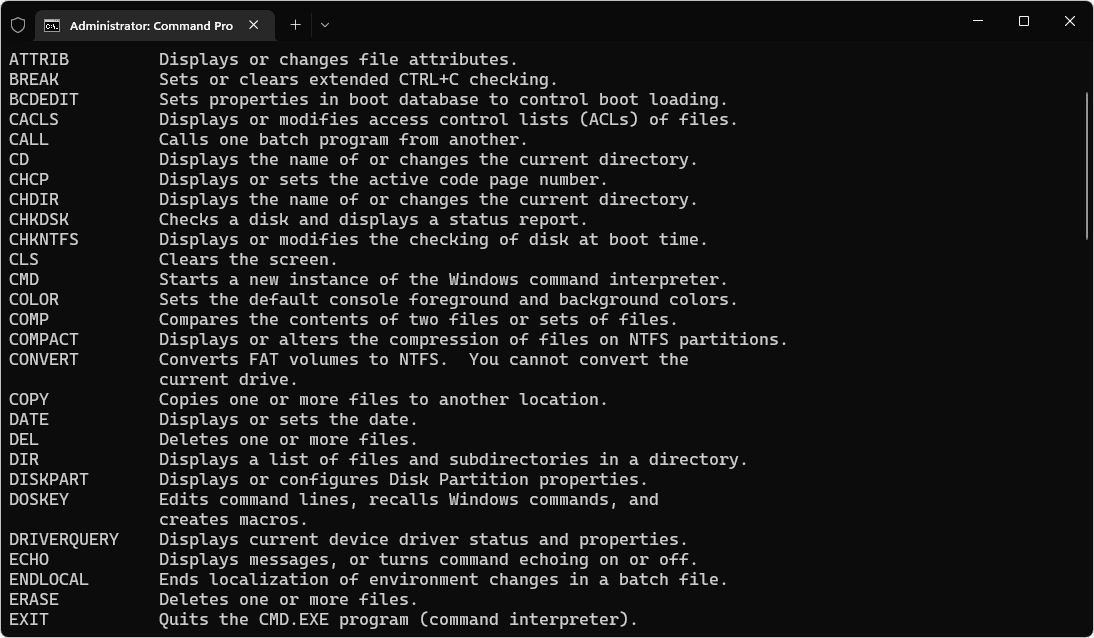

📘 Who Is This Guide For?
Whether you’re just starting in IT support or already helping users every day, the Windows Command Prompt (CMD) is one of those tools that quietly saves your life again and again.
This guide is for:
- 💼 Helpdesk / Service Desk / IT Support engineers
- 🧑💻 Junior system administrators
- 🎓 Students learning Windows & networking
- Anyone who wants to troubleshoot faster and look “pro” while doing it 😉
🌟 Why CMD Still Matters in 2025
Yes, we have beautiful GUIs and modern tools, but CMD is still:
- ⚡ Faster than GUI for many tasks
- 🧠 Scriptable – can be automated and reused
- 📦 Always available – even when explorer is broken
- 🔍 More detailed – some info only appears in CLI
The goal of this article is not to dump a huge list of commands, but to show you the most useful ones for real IT support work, with friendly explanations.
1️⃣ System Information & Diagnostics
These commands help you quickly understand what kind of machine you’re dealing with and its health.
🔹 systeminfo – Full system overview
Shows detailed information about the OS, hardware, installed updates, uptime and more.
systeminfo
Use when:
- User asks: “Is my Windows 10 or 11?”
- You need to confirm RAM, domain, or last boot time.
🔹 hostname – Computer name
Quickly see the machine name (important when working via Remote Desktop or handling tickets).
hostname
🔹 ipconfig /all – Full network configuration
Shows IP address, gateway, DNS servers, MAC address, DHCP information and more.
ipconfig /all
Use this first whenever there’s a network or internet issue. Check:
- Does the user have a valid IP and gateway?
- Is DNS server correct (company DNS, not some random one)?
🔹 tasklist – See running processes
Lists all currently running processes – similar to Task Manager’s Processes tab, but in text.
tasklist
🔹 taskkill – Kill a stuck program
Allows you to force close an application or process by name or PID.
taskkill /IM notepad.exe /F
taskkill /PID 1234 /F
Tip: Use tasklist first to find the PID.
2️⃣ Network Troubleshooting Essentials
When users complain “internet slow”, “VPN not working”, or “can’t reach server”, these are your best friends.
🔹 ping – Basic connectivity test
Checks if a device is reachable and how long it takes to respond.
ping 8.8.8.8
ping www.google.com
- If ping to IP works but ping to website fails → DNS issue.
- If nothing answers → network, routing, or firewall issue.
🔹 tracert – See the path to a destination
Shows each hop (router) your traffic passes through to reach a destination.
tracert 8.8.8.8
Useful when some links in the path are slow, or traffic is getting stuck in the middle.
🔹 nslookup – DNS troubleshooting
Checks how DNS resolves a domain name.
nslookup www.google.com
nslookup intranet.company.local
🔹 netstat -ano – Active connections & ports
Shows which ports are listening and which remote IPs the PC is talking to.
netstat -ano
Combine with tasklist to see which process uses which port.
🔹 arp -a – IP to MAC mapping
Displays the ARP table – which IP addresses are mapped to which MAC addresses.
arp -a
3️⃣ User & Security Management
These are handy on workgroup PCs or small environments. In domain environments, you usually do this via Active Directory, but knowing these still helps.
🔹 net user – Manage local users
List all local user accounts:
net user
Create a new local user:
net user john P@ssw0rd! /add
Add user to local Administrators group:
net localgroup administrators john /add
Delete a user:
net user john /delete
🔹 whoami – Who am I?
Shows the currently logged-in user and, in domain environments, their domain.
whoami
4️⃣ File & Disk Commands
When a PC feels slow, apps crash or files misbehave, disk and system file checks are a must.
🔹 chkdsk – Check disk for errors
Checks the file system and disk for logical errors.
chkdsk C: /F
It may require a reboot to run on system drives. Always warn the user first.
🔹 sfc /scannow – System File Checker
Scans and attempts to repair corrupted Windows system files.
sfc /scannow
🔹 diskpart – Advanced disk management
Opens the disk partitioning tool. Be careful – wrong commands here can erase data.
diskpart
🔹 dir & tree – Explore files/folders
List files in a folder:
dir
Show folder structure as a tree:
tree
5️⃣ Remote & Session Management
When you manage users remotely or need to restart machines, these commands are essential.
🔹 mstsc – Remote Desktop
Opens the Remote Desktop Connection window.
mstsc
🔹 shutdown – Restart / Shutdown machine
Restart immediately:
shutdown /r /t 0
Shutdown after 60 seconds with a message:
shutdown /s /t 60 /c "System will shut down for maintenance."
🔹 logoff – Log off current user
logoff
🔹 net use – Network drives
See existing mapped drives:
net use
Map a new drive:
net use Z: \\server\share
6️⃣ Bonus: Smart Habits for CMD in IT Support
- 📂 Keep a personal notepad or .bat file with your favorite commands.
- ✅ Run CMD as Administrator when doing system-level tasks.
- 🧪 Practice on a lab or test VM before doing advanced commands on live PCs.
- 📸 Take screenshots of useful outputs and attach them to tickets.
- 🧾 Document your standard steps – this makes you faster and more consistent.
7️⃣ How to Practice (Simple Daily Routine)
Every day, try this mini-routine on your own PC or a test machine:
- Check system info →
systeminfo - Check IP and DNS →
ipconfig /all - Ping your gateway and a website →
ping - List running tasks →
tasklist - Map a test network drive →
net use
Do this for 2–3 weeks and these commands will become natural for you.
✅ Final Thoughts
CMD is not “old school” – it’s a power tool. The more comfortable you are with it, the more confident and fast you’ll be as an IT Support professional.
Start small, practice regularly, and over time you’ll build your own toolbox of commands that match your style and environment.